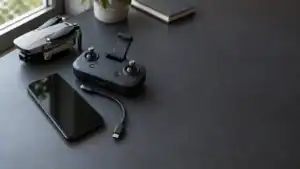
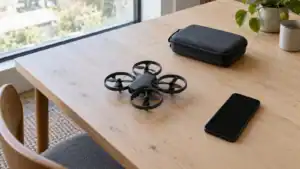
The correct Potensic ATOM SE app is PotensicPro, not Potensic Eve. Install PotensicPro from the official Apple App Store, Google Play, or Potensic download page; register while the phone has internet access; connect the phone to the remote controller with the correct USB data cable; update the firmware; complete only the calibrations the app requests; and wait for the correct Home Point before taking off.
Quick answer: The three setup mistakes most likely to ruin a first flight are downloading Potensic Eve, using a charge-only or poorly seated phone cable, and launching before the aircraft enters GPS mode and confirms the Home Point. Fix those first. Potensic Eve supports ATOM 2 and later models; ATOM SE, ATOM, and ATOM LT use PotensicPro.
This guide is based on Potensic's current download information, ATOM SE documentation, and official app listings. App screens can move as software is updated, so follow the current on-screen wording when it differs slightly from the menu names shown here.
Correct app
PotensicPro for ATOM SE, ATOM, and ATOM LT.
Phone connection
USB data cable to the controller, not a Wi-Fi connection to the aircraft.
Safe first takeoff
Outdoors in GPS mode after the app confirms the Home Point.
Potensic ATOM SE product and bundle options

Featured gear
Potensic ATOM SE GPS Camera Drone
The Potensic ATOM SE is an under-249 g GPS camera drone with 4K/30 fps EIS video, 12 MP RAW photos, Return to Home, a 4 km manufacturer-rated transmission system, and two batteries rated for…
The Potensic ATOM SE is an under-249 g GPS camera drone with 4K/30 fps EIS video, 12 MP RAW photos, Return to Home, a 4 km manufacturer-rated transmission system, and two batteries rated for up to 31 minutes each.
- Best for
- Best for a beginner or traveler who wants an under-249 g GPS camera drone…
- Skill level
- Beginner
- Product type
- Beginner Drones, Camera Drones, Drones, Under 249g Drones
- Best for
- A beginner or traveler who wants an under-249 g GPS camera drone with 4K…
- Skill level
- Beginner
- Product type
- Foldable GPS Camera Drone
PotensicPro versus Potensic Eve: which app does ATOM SE use?
ATOM SE uses PotensicPro. Potensic's current ATOM 2 FAQ states that Potensic Eve is compatible only with ATOM 2 and later models. The original ATOM, ATOM SE, and ATOM LT remain on PotensicPro. The similar names make it easy to install the newer-looking app and assume the drone or phone is defective when it does not connect.
| Drone | Correct app | What to avoid |
|---|---|---|
| ATOM SE | PotensicPro | Do not use Potensic Eve. |
| ATOM | PotensicPro | Do not choose an ATOM 2 setup flow. |
| ATOM LT | PotensicPro | Do not use Potensic Eve. |
| ATOM 2 and later models | Potensic Eve | Do not assume Eve is backward-compatible with ATOM SE. |
Install from an official listing published by Shenzhen Potensic Intelligent Co., Ltd. Avoid third-party APK sites, repackaged apps, or download links in old videos. An unofficial package creates unnecessary account, permission, compatibility, and update risks.
Phone requirements and controller fit
Potensic currently lists iOS 13.0 or later for iPhone. Android phones need Android 7.0 or later, a 64-bit processor, and at least 4 GB of operating memory. The Android hardware requirements matter: an inexpensive phone may run Android 7 or newer but still use a 32-bit system or too little RAM.
| Requirement | Potensic specification | Practical check |
|---|---|---|
| iPhone software | iOS 13.0 or later | Update iOS and PotensicPro before traveling to the field. |
| Android software | Android 7.0 or later | Confirm the phone still receives app and security updates. |
| Android architecture | 64-bit processor | A recent OS version alone does not prove 64-bit compatibility. |
| Android memory | At least 4 GB RAM | Close heavy background apps before launching PotensicPro. |
| Maximum device size | 170 × 100 × 8.5 mm | A thick case may make an otherwise compatible phone too large. |
Remove a thick protective case before forcing the phone into the controller. The clamp should hold the device firmly without pressing side buttons or crushing the connector. Use the included short cable that matches the phone: USB-C, Lightning, or the appropriate connector supplied with the package.
The phone communicates with the remote controller through that cable. The controller then communicates with the aircraft over PixSync 2.0. You do not join a drone Wi-Fi network for the normal ATOM SE control link, and Bluetooth is not the primary flight connection.
Prepare the equipment before opening PotensicPro
Do the first setup at home while internet access is reliable, but save compass work and the first aircraft startup for an open area away from metal. Firmware downloads, account registration, and app updates are easier to resolve before the planned flight.
Before setup:
- Fully charge the flight battery, remote controller, and phone.
- Update the phone's operating system and install PotensicPro from an official store.
- Confirm the package contains the correct phone data cable.
- Inspect the propellers for cracks, bends, looseness, or incorrect installation.
- Unfold all four aircraft arms completely.
- Remove any camera or transport protection that prevents free camera movement.
- Insert a compatible microSD card while the aircraft is powered off if you want to record.
- Keep the printed quick-start guide and account email available.
The remote controller can supply the connected phone at 5 V/500 mA, but that is not a substitute for starting with a charged phone. Screen brightness, video decoding, maps, and cellular service can consume substantial power during setup and flight.
PotensicPro account setup, activation, and first connection
Potensic's manual requires an account for first use. The interface may describe parts of this flow as registration, login, device connection, or activation depending on app version and region. Complete it while the phone is online.
- Open PotensicPro and create an account. Enter an email address, create a password, review the agreements, and complete registration. Then sign in.
- Select ATOM SE. Do not select ATOM, ATOM 2, or another visually similar model.
- Mount and unlock the phone. Remove a thick case if needed and make sure the connector remains accessible.
- Connect the phone to the controller. Use the correct short USB data cable, not a charge-only replacement cable.
- Power on the controller. Hold its power button until the indicators illuminate, then approve any phone prompt asking which app should handle the USB accessory.
- Place the aircraft on open, level ground. Insert the battery fully and verify that its latch returns to the locked position.
- Power on the aircraft. Short-press and then press and hold the aircraft power button until its indicators illuminate.
- Enter the flight screen. Wait for the controller and aircraft status to connect and confirm that live video, battery information, and flight status appear.
The aircraft and controller are paired at the factory. Normal first use should require connection, not manual re-pairing. Do not open the re-pairing menu merely because GPS has not locked or a permission is missing; those are separate issues.
If the phone charges but PotensicPro remains disconnected: Charging proves that power reaches the phone, not that the data connection works. Re-seat both ends, unlock the phone, accept the USB-accessory prompt, remove the case, and try the original cable before re-pairing the aircraft.
Which phone permissions should PotensicPro receive?
Permission names differ between iOS and Android releases. Grant access according to the feature you intend to use rather than approving every request without context.
| Permission or prompt | Why the app may request it | What happens if denied |
|---|---|---|
| USB accessory or OTG | Allows the phone to exchange data with the remote controller. | The app may show disconnected even while the phone receives power. |
| Location | Supports phone location, map functions, and location-aware app features. | Maps or device-location features may be limited; the aircraft still relies on its own positioning sensors. |
| Photos, media, or storage | Allows downloaded previews or media to be saved and viewed on the phone. | Flight control may work, but app downloads and gallery access can fail. |
| Notifications | Supports update, account, or status notices outside the active screen. | Core flight control should not depend on notifications, but reminders may be missed. |
| Mobile data or network access | Needed for registration, firmware downloads, maps, and CHECKLISTS & NOTES. | Online services will fail even though the wired controller link may remain available. |
If a previously denied permission becomes necessary, open the phone's Settings app, locate PotensicPro, and enable only that access. Restart PotensicPro after changing USB, location, or media permissions so the connection state refreshes cleanly.
Pairing and firmware updates are different jobs
When to re-pair the aircraft
Re-pair only when the factory-paired controller and aircraft genuinely fail to establish their radio link, or after either component has been replaced. In PotensicPro, open Settings, choose the calibration or connection area, and select Re-pair the drone. Power on the aircraft and hold its power button until its status indicators flash green, then follow the app.
A blank map, missing GPS lock, unavailable media album, or absent phone connection does not by itself prove the aircraft radio needs re-pairing. Diagnose the status icons separately before changing a factory pairing.
Update firmware before calibrating and flying
Connect the phone, controller, and aircraft, then check Settings or About for device and firmware information. If PotensicPro offers an update:
- Start with the aircraft battery, controller, and phone fully charged.
- Keep the phone on a stable internet connection.
- Leave the phone cable connected and keep all components powered as instructed.
- Do not close the app, remove the aircraft battery, or interrupt power during installation.
- Allow the aircraft or controller to restart if the app requests it.
- Reconnect and confirm that PotensicPro shows the expected firmware state before moving to calibration.
The aircraft indicator may flash rapidly while it is in upgrade mode. If an update fails, charge everything, restart the components, confirm the phone's internet and USB data connection, and retry before attempting a flight.
Compass and controller calibration
Calibration is a corrective procedure, not a ritual that improves every flight. Complete compass calibration when PotensicPro requests it, on first setup if instructed, after a substantial change in flying location, or when the app reports abnormal compass data. Calibrate the controller only when the sticks or camera dial behave incorrectly.
Compass calibration
- Unfold the arms and move outdoors to an open area.
- Stay away from cars, reinforced concrete, metal tables, bridges, power lines, magnets, and large structures.
- Open Settings, Calibration, and Compass Calibration if the prompt did not open automatically.
- Start calibration and hold the aircraft level.
- Rotate the aircraft horizontally through 360° until PotensicPro requests the vertical step.
- Hold the aircraft vertically and rotate it through 360° until the app confirms completion.
If calibration fails repeatedly, stop repeating it in the same spot. Power down, move well away from buried metal or vehicles, remove magnetic accessories from the immediate area, and try again. A location problem is more likely than a need for faster or more rotations.
Remote controller calibration
Use controller calibration when the aircraft drifts or rotates with untouched sticks, or when stick response feels abnormally sensitive or weak. In PotensicPro, choose Remote Controller Calibration, leave the sticks centered before starting, then move both sticks through their full ranges and rotate the camera dial as directed until the app reports 100% and a successful result.
Do not use controller calibration to correct wind drift, weak GPS, a damaged propeller, an aircraft compass error, or an uneven takeoff surface.
microSD setup: where ATOM SE recordings are stored
ATOM SE stores full-resolution photos and videos on the aircraft's microSD card, not automatically in PotensicPro or the phone gallery. Without a compatible card installed, the manual says the aircraft cannot record video or capture photos.
| Item | Potensic requirement | Setup consequence |
|---|---|---|
| Card type | microSD | Insert it in the aircraft, not the controller or phone. |
| Capacity | 4 GB to 256 GB | Back up existing files before formatting. |
| Minimum speed | Class 10 or U1 | A slow or counterfeit card can stop recording. |
| File system | FAT32 or exFAT | Format in PotensicPro when the card is new or rejected. |
| App download quality | 720p transmission copy | Read the card directly to retrieve full-resolution originals. |
Power the aircraft off before inserting or removing the card. After reconnecting, open Camera settings to verify capacity and format the card if necessary. Formatting erases existing files. Record a short test clip, stop recording normally, and confirm that it appears before relying on the setup for an important flight.
PotensicPro can preview and download media while the phone, controller, and aircraft are connected. Those convenient app downloads use the 720p video-transmission stream. Remove the card and copy it to a computer or card reader for the original 4K, 2.7K, 1080p, JPEG, or RAW files.
Home Point and Return to Home setup
The Home Point is the GPS coordinate the aircraft uses for Return to Home. ATOM SE must enter GPS mode and record the Home Point correctly before takeoff. PotensicPro displays a Home Point update prompt and shows the location on its map or attitude display.
Do not launch in OPTI mode and assume the takeoff spot will be saved later. Potensic warns that if ATOM SE takes off using visual positioning and switches to GPS during the flight, the recorded Home Point is no longer necessarily the takeoff point. RTH may not return to where you launched.
- Place the aircraft outside on a level surface with a clear view of the sky.
- Wait until PotensicPro reports GPS mode and confirms that the Home Point has been updated.
- Open the map and verify that the Home Point marker matches the actual launch area.
- Set a return altitude that clears the tallest obstacle on the expected path with a sensible margin.
- Choose the intended lost-signal behavior if the current app exposes that setting.
- Keep the takeoff area clear so an automated landing would not strike people, vehicles, trees, or overhead wires.
ATOM SE does not have obstacle avoidance. During RTH, it can climb to the configured altitude, fly toward the Home Point, and descend, but it cannot route around trees, buildings, cables, or cranes. Never start under an overhead obstruction, and do not set a return altitude lower than obstacles between the aircraft and home.
A safer ATOM SE first-flight sequence
Use a large outdoor area with a hard, level launch surface, light wind, no people nearby, no overhead cover, and a clear view of the sky. Leave Beginner Mode on. Potensic limits Beginner Mode to a 30 m radius, a 30 m height, and Video speed, which is appropriate for learning the controls.
- Confirm the status line. The app should show the controller, aircraft, camera feed, battery data, microSD state, GPS mode, and a recorded Home Point with no unresolved warning.
- Check the safety settings. Verify Beginner Mode, the virtual fence, units, control-stick mode, and RTH altitude.
- Check the physical aircraft. Confirm all arms are open, the battery latch is secure, propellers are undamaged, and the camera moves freely.
- Take off and hover low. Rise to approximately 1.2 to 2 m and hold position for 20 to 30 seconds.
- Test one input at a time. Make small climb, descent, yaw, forward, backward, left, and right commands while remaining close.
- Test the camera. Move the camera tilt dial, record a short clip, stop recording, and take one photo.
- Practice Pause and landing. Understand which controller button stops an automated maneuver, then perform a deliberate manual landing.
Do not make the first flight a range test, Sport-mode run, Follow Me session, or RTH demonstration. A short hover and control check confirms more about the setup with far less risk. Smart modes can wait until the pilot understands the status display and manual controls.
For the broader aircraft decision, the Potensic ATOM SE review explains its camera and flight limitations. If battery count and charging hardware are still undecided, use the ATOM SE bundle guide.
PotensicPro setup troubleshooting
| Symptom | Most likely checks |
|---|---|
| ATOM SE is missing in the app | Confirm that the installed app is PotensicPro, not Potensic Eve. |
| Phone charges but app says disconnected | Unlock the phone, approve USB/OTG access, re-seat the original data cable, remove the case, and restart PotensicPro. |
| Controller connects to phone but not aircraft | Power-cycle both components, wait for startup, then use Re-pair the drone only if the radio link remains absent. |
| Compass calibration repeatedly fails | Move away from cars, rebar, buried metal, structures, magnets, and power equipment before retrying. |
| Firmware update fails | Recharge all devices, restore stable internet, verify the USB data connection, restart, and retry without interrupting power. |
| No GPS or Home Point | Move outdoors with open sky, away from buildings and interference, and wait without taking off. |
| Camera will not record | Power off, install a supported microSD card, reconnect, check free space, and format only after backing up existing files. |
| Phone does not fit controller | Remove the case and compare the device with the 170 × 100 × 8.5 mm supported dimensions. |
If the aircraft reports a sensor error, has suffered an impact, will not complete firmware installation, or behaves abnormally after correct calibration, do not attempt a test flight. Save screenshots, record indicator behavior, export or retain relevant logs, and contact Potensic support with the order number and exact sequence that produces the fault.
Final setup recommendation
Use PotensicPro, establish the wired phone-to-controller data connection before troubleshooting the aircraft, and treat Home Point confirmation as a required preflight item. Register and update at home, perform requested compass work outdoors away from metal, format and test the microSD card, leave Beginner Mode enabled, and make the first flight a short control check rather than a feature demonstration.
That sequence prevents the most avoidable returns: the wrong app, a phone that only charges, missing full-resolution recordings, unnecessary re-pairing, and an RTH location that was never recorded correctly.
Check the current ATOM SE package. Verify the battery count, phone cables, charging hardware, and carrying case included with the listing.
Sources
Last checked: August 4, 2026