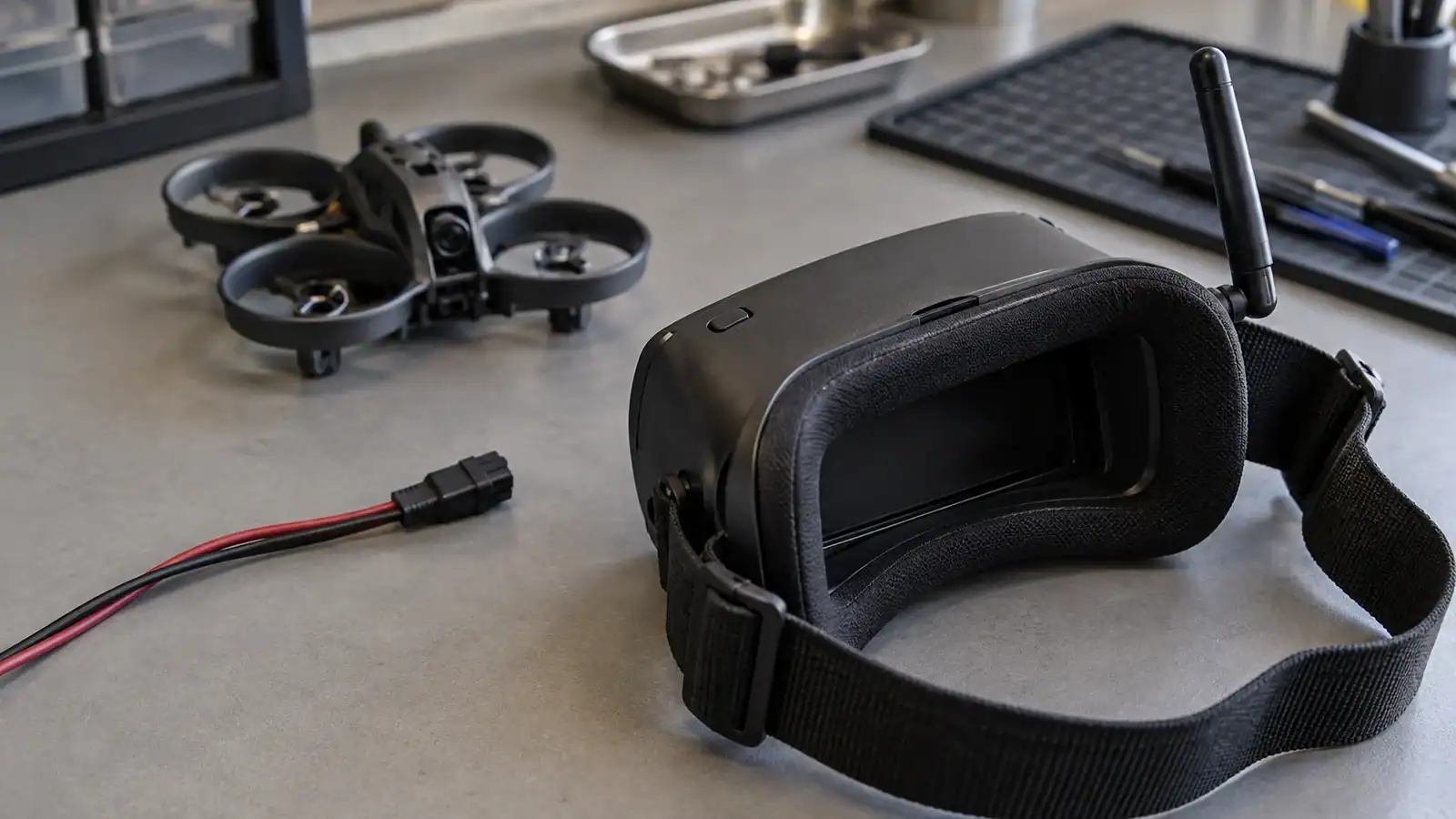
If your Aquila20 goggles show no video, first separate a screen that will not turn on from a powered screen receiving no camera image. For the analog kit with VR04 goggles, check power, raise the antenna and scan for the aircraft while it is disarmed. Then verify the exact video frequency. Stop before firmware changes or further powered checks if anything is damaged or overheating.
These steps cover the Aquila20 analog FPV kit. BETAFPV lists VR04 goggles with that kit; check the label before proceeding. If yours says VR04 HD, use the Aquila20 analog versus HD comparison to identify the video system. Analog channel scanning is not an HD pairing procedure. BETAFPV’s kit specification identifies the included hardware.

Featured gear
BETAFPV Aquila20 FPV Kit
The BETAFPV Aquila20 FPV Kit is a complete analog RTF system with a 122 g brushless whoop, ExpressLRS LiteRadio 4 SE transmitter, VR04 DVR goggles, assisted N mode, Manual mode, and approximately ten-minute manufacturer-rated…
The BETAFPV Aquila20 FPV Kit is a complete analog RTF system with a 122 g brushless whoop, ExpressLRS LiteRadio 4 SE transmitter, VR04 DVR goggles, assisted N mode, Manual mode, and approximately ten-minute manufacturer-rated flights.
- Best for
- Best for a beginner who wants a complete analog FPV learning kit with assisted…
- Skill level
- Beginner to Intermediate
- Product type
- Beginner Drones, Drones, Under 249g Drones
- Best for
- A beginner who wants a complete analog FPV learning kit with assisted hovering, simulator-compatible…
- Skill level
- Beginner to Intermediate
- Product type
- Analog Ready-to-Fly FPV Whoop Kit
1. Identify what the goggles actually show
Keep the aircraft on the ground. Remove its propellers before powered diagnosis, leave it disarmed and disconnect its battery before handling wiring or other parts. Do not arm it to find out whether the camera works.
| Symptom | Next check | What remains uncertain |
|---|---|---|
| No screen light or goggle interface | Charge and restart the goggles. | The aircraft’s video condition cannot yet be judged. |
| Scan interface works, but there is static or no scene | Check aircraft power and match the video frequency. | A working interface does not prove a working video receiver. |
| A picture appears, but it is not your camera view | Confirm which transmitter the scan selected. | Signal strength alone cannot identify the aircraft. |
| The picture disappears after initially working | Disconnect, let the aircraft cool and inspect for damage. | Timing alone cannot distinguish heat, power or hardware faults. |
Write down the symptom before changing anything. Change one setting at a time so you can tell what restored the picture. If a picture is present but static, limited range or channel problems remain, continue with our Aquila20 analog video troubleshooting guide.
2. Restore power and match the analog channel
- Start with charged goggles and an undamaged, charged aircraft battery. VR04 goggles charge through USB-C. Power on the goggles by holding their power button for five seconds. A charging indicator alone does not establish that the display has started.
- Raise the goggle antenna and power the aircraft. Keep the propellers removed and other nearby video transmitters off where possible. BETAFPV’s quick start allows three to four seconds for the camera view to appear.
- Start a frequency search. Hold the VR04 5D button until scanning begins. The current goggle instructions specify two to three seconds and a confirmation beep; the kit quick start says five seconds. Watch for the scan response rather than repeatedly pressing unrelated controls.
- Confirm a live view from your aircraft. With the motors disabled, move an object in front of its camera without touching the aircraft. The image should follow that movement. Auto-search selects a strong signal, which is not proof that it selected yours.
These controls are documented in the VR04 operating information and Aquila20 quick start.
If scanning fails, short-press 5D to open the frequency interface, move it directionally to choose a channel, then short-press to exit. The stock aircraft uses Band B: 5733, 5752, 5771, 5790, 5809, 5828, 5847 and 5866 MHz. If its current setting is unknown, check those eight channels one at a time. Match the actual frequency; a channel number without its band is incomplete.
On the connected LiteRadio 4 SE, SD changes video frequency when the aircraft is upright. An accidental toggle can therefore leave the goggles tuned elsewhere. Keep SD still while checking channels. Also leave recorded-video playback: the manual specifies holding the record button for two to three seconds to exit. These details come from the analog kit user manual, sections 4 and 5.
3. Treat heat and crash damage separately
Do not increase transmitter power to solve a missing picture on the bench. BETAFPV specifies a 25 mW default and warns that at 350 mW the video transmitter can overheat and drift in frequency while stationary. Its quick start gives a stop longer than four minutes as an example, not a guaranteed safe testing interval.
Keep powered checks brief. If video deteriorates as the aircraft warms, disconnect it and let it cool; do not take off simply to provide cooling. A picture that returns after cooling is useful information for support, but it does not establish that the fault is repaired.
After a crash, inspect the camera, exposed wiring and antenna with power disconnected. Stop if a connector is torn loose, insulation is damaged, a battery is swollen, or there is unusual heat or smell. Do not probe a powered board, guess a connector pinout or buy a camera solely because the screen is black.
If reception is reliable nearby but deteriorates with distance or obstacles, the Aquila20 control-versus-video range guide explains why the two links need separate attention. A connected radio does not establish a usable camera feed.
4. Identify the hardware before considering firmware
Check the official Aquila20 firmware page against the installed hardware. As checked September 9, 2026, it lists flight-controller firmware v2.3.8, build 20260226, for both analog and HD aircraft. That is separate from the video-transmitter firmware.
The analog VTX v1.0.4 file, build 20260309, is specifically restricted to a board marked v1.1 with a PuNeng Micro 6659A power-amplifier chip. If you cannot positively identify those details, stop and ask BETAFPV which file applies. Do not infer compatibility from the Aquila20 name.
The flight-controller instructions also require restoring default settings after a configurator update. Flashing therefore changes more than the symptom you are investigating. The release notes do not promise a universal no-video fix. Record the existing versions and obtain hardware-specific guidance before changing them.
5. Know when to stop and contact support
Stop troubleshooting if the charged goggles cannot display their interface, the correct frequency never produces your camera view, or the feed keeps dropping out after the basic checks. A black picture with aircraft-generated flight information still visible makes the camera path worth investigating, but it does not prove which component failed. The goggles’ own channel display is different: seeing that alone does not establish reception from the aircraft.
Send support the exact aircraft and goggle labels, whether the failure followed a crash or update, the selected frequency, known firmware versions and whether the image ever works from a cold start. A photo of the screen and unpowered damaged area is more useful than describing everything as “no signal.” Do not open the aircraft merely to collect a chip number you cannot safely access.
Before another flight, confirm a stable live view of your own camera, then complete the kit’s normal preflight checks. One successful scan is a reason to continue checking, not a reason to ignore a recurring dropout.
Sources
- BETAFPV Aquila20 FPV Kit: manufacturer identification of the analog kit and included equipment.
- BETAFPV Aquila20 user manual: attached analog manual, particularly radio switches, frequency selection, playback and safety instructions.
- BETAFPV Aquila20 quick start: goggle startup, antenna position and stationary VTX heating warning.
- BETAFPV VR04 FPV Goggles: manufacturer charging, scanning and recording instructions.
- BETAFPV Aquila20 firmware and compatibility notes: flight-controller version and hardware restrictions on analog VTX firmware.
Last checked: September 9, 2026.