To update HOVERAir X1 PRO firmware, connect the powered-on aircraft to the official HOVER app, accept its Update prompt and keep the aircraft powered until installation and the automatic restart finish. Reconnect afterward, check the installed version and review flight settings before taking off.
Featured gear
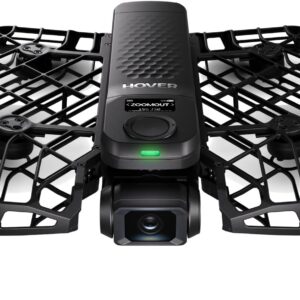
HOVERAir X1 PRO Standard 4K Follow-Me Camera
The HOVERAir X1 PRO Standard is a 192 g self-flying camera with automated subject tracking, horizontal 4K/60 video, vertical 2.7K/60 recording and a protected foldable design for sports and solo filming. Best for: Running,…
The HOVERAir X1 PRO Standard is a 192 g self-flying camera with automated subject tracking, horizontal 4K/60 video, vertical 2.7K/60 recording and a protected foldable design for sports and solo filming.
- Best for
- Choose the X1 PRO Standard for compact, controller-free sports tracking and 4K/60 recording. The…
- Product type
- Camera Drones, Drones, Under 249g Drones
- Best for
- Choose the X1 PRO Standard for compact, controller-free sports tracking and 4K/60 recording. The…
- Product type
- Self-flying follow-me camera
Prepare the aircraft, phone and a record of your settings
Do the update on the ground with time to resolve a problem before your next flight. Charge the aircraft and phone first. Follow any battery requirement shown by the current app; do not treat a minimum percentage from an original-X1 tutorial as an X1 PRO instruction.
Inspect the battery, cable and charging port before charging. HOVERAir's battery safety manual says not to charge a damaged, swollen or leaking battery, or use a damaged cable. Let a hot battery cool first, monitor charging and stay within its specified charging range of 5–40°C (41–104°F). An update is no reason to work around a battery warning.
Use the app download links on the official X1 PRO support page. Update the phone app through its official route before checking aircraft firmware. Have internet access available for downloads, keep the phone nearby and leave the update screen open so you can follow its instructions.
Before changing software, note the installed app and aircraft versions wherever the connected app displays them. Save screenshots of the flight-mode, camera and safety settings you use. Download important recordings and check that the copies play. These are practical precautions that give you a comparison afterward; they do not imply that a routine update necessarily erases footage or resets settings.
If the aircraft is new and still needs activation, complete the HOVERAir X1 PRO first-flight setup before treating a missing update prompt as a firmware fault.
Connect, install and wait for the restart
The September 2025 Quick Start Guide documents Bluetooth discovery on the Hover page. HOVERAir's model-specific OTA instructions then use the app's Update prompt. Menu placement can change, so follow the prompt for the connected aircraft rather than a remembered screenshot.
- Power on and connect. Open the app's Hover page, enable Bluetooth as prompted, search for the nearby aircraft and select your X1 PRO. Permit the connection permissions the app requests; HOVERAir's activation guide specifically names Bluetooth and location.
- Resolve discovery before updating. If pairing is needed, the Quick Start Guide says to hold both select buttons until the status light turns blue, then connect through the app. Do this before an update starts. Do not experiment with button combinations during installation.
- Read the offered update. Confirm that it applies to the connected X1 PRO and read any prerequisites or warnings. Record the target firmware version so you can compare it with the installed result.
- Tap Update and follow the on-screen steps. Keep the aircraft powered throughout. Leave it grounded, keep the phone close and avoid switching tasks while it works.
- Let completion and the restart finish. HOVERAir specifies an automatic restart after the update. A pause in the progress display is not an instruction to remove the battery or force a shutdown. Wait for the app's completion or recovery instructions.
- Reconnect and inspect the result. Check the aircraft version shown in the connected app against the version offered. Preserve any failure message or remaining update requirement before attempting another action.
The app and aircraft run separate software. Updating the app alone does not establish which firmware is installed on the aircraft. If the aircraft does not reconnect, use the stage checks below before attempting a flight.
Check the model's release notes, not just the highest number
As of September 10, 2026, HOVERAir's release notes list X1 PRO/X1 PROMAX v8.4.15, dated August 6, 2026, as the newest entry for that aircraft family. The manufacturer describes Follow-mode stability improvements, Ski-mode Smart Ascend optimization and other fixes. Those notes describe the release; they do not promise to cure every tracking or connection problem.
The page also contains app and other-device entries. Compare your aircraft against its own model row. A higher app version or a feature listed for another aircraft is not evidence that your X1 PRO is missing that feature.
HOVERAir says over-the-air updates roll out gradually, typically over a few days. A newly announced release may therefore appear online before your device receives it. If a much older version remains installed long after a release, or a required feature keeps requesting an update, record both versions and ask support to check. Do not use an unofficial firmware file to force the numbers to match.
Match the problem to the stage that failed
The next action depends on whether installation has started. Checking a connection before an update is different from interrupting firmware that is already installing. Use the displayed state and exact message, not a guessed timeout.
| What you see | What to check | When to stop |
|---|---|---|
| Aircraft not found before updating | Power, app Bluetooth permissions and the documented pairing step. | If discovery still fails, resolve connection through support before starting an update. |
| No update offered | Installed aircraft version, current app and the X1 PRO release entry. | A persistent mismatch needs support; a new staged rollout may simply need time. |
| Download reports a network error | Record the message and confirm whether the app says download failed or installation began. | Retry only as the app directs once the download connection is restored. |
| Installation appears stuck | Preserve the screen, version and elapsed time; keep power on while following the displayed instructions. | Do not invent a battery-pull or reset procedure. Ask HOVERAir for the next step. |
| Failure repeats or aircraft will not reconnect after completion | Record the first failing stage and any aircraft error as well as the app message. | Keep it grounded and seek model-specific recovery instructions. |
Do not jump from a failed update to a factory reset, downgrade or desktop reflash. Before attempting recovery, ask HOVERAir which procedure applies to your exact state and whether it changes settings or stored media. Avoid stacking several fixes together: it makes the original fault harder to describe and may introduce another problem.
Verify settings and a short recording before resuming tracking
Start with the aircraft still grounded. Recheck its reported version, charge and warnings. Compare the settings you recorded earlier with the current selections. HOVERAir's setup guide places flight-mode parameters under Hover Settings > select a flight mode. Confirm the intended mode, height, distance and shooting settings before launch.
If you use Manual Control, the safety manual places the available connection-loss behavior under Manual Control > settings > Operation Settings > Safety Settings. Check whether Hover or Return to Home is selected where offered. Read the selection on the ground; deliberately disconnecting in flight is not a necessary update check.
The manual also calls for a charged aircraft and inspection of the guards, propellers, motors, battery and gimbal before flight. A successful update does not clear physical damage or a remaining error message. Resolve those before launching.
For the first flight afterward, choose a short, familiar shot in a clear area where flight is permitted. Keep the aircraft in sight and leave room away from people and obstacles. Our recommendation is to check normal launch, steady behavior, landing and a playable saved clip before attempting a more demanding route. End the check if behavior is abnormal; do not extend the flight to diagnose it.
Once those checks pass, review the X1 PRO tracking settings for walking, running and cycling for your intended activity. Reassess the settings a release changed before relying on them for an important recording.
If you need help, use customer service on the official support page. Provide the X1 PRO serial number privately, phone model, operating-system version, app version, installed and offered firmware versions, exact error and the stage where it occurred. Say whether the aircraft restarted and reconnected. That gives support a much clearer starting point than “the update failed.”
Sources
- HOVERAir getting-started guide: Manufacturer OTA sequence, power continuity, restart and flight-setting controls.
- HOVERAir release notes: Dated aircraft firmware changes and gradual rollout notice.
- X1 PRO support center: Official app downloads, current manual links and customer service.
- Quick Start Guide, September 2025: Manufacturer Bluetooth connection and pairing instructions.
- Safety Instructions, September 2025: Manufacturer preflight inspections, warnings and connection-loss settings.
- Battery Safety Instructions: Manufacturer charging conditions and battery inspection requirements.
Last checked: September 10, 2026.