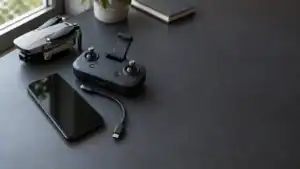
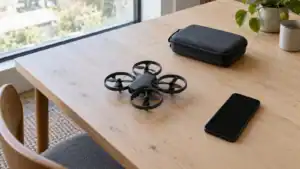
To set up the HOVERAir X1 PRO, first charge its battery to activate it, connect and activate the aircraft in the Hover X1 app, then complete any offered firmware update. For your first flight, choose Hover mode in a clear, well-lit area, practice palm takeoff and landing, and download the recording before trying a moving follow shot.
A useful first-flight goal is simple: confirm that the camera connects, holds position, lands predictably and produces a playable clip. Leave distance, speed and creative flight paths for later.
1. Charge the battery and inspect the aircraft
Have the aircraft, its correct battery, the charging cable and charging equipment specified for your unit, and a charged phone ready. Use the app download links on the official X1 PRO support page; check the current store listing for your phone's requirements before heading out.
The Quick Start Guide begins with charging to activate the battery. Fold the aircraft and connect its USB-C charging port with the battery installed. Look for the charging animation, then a full-charge indication. The guide identifies 100% or the charging screen switching off as completion; if you never saw charging begin, an unlit screen alone proves nothing.
Inspect the battery and connector before plugging in. The battery safety manual says not to charge a swollen, leaking or damaged battery, or use a damaged cable. Keep charging equipment dry, monitor charging, and use the specified charging temperature range of 5–40°C (41–104°F).
With power off, check the guards, propellers, motors and camera assembly for damage or obstruction. Confirm that the battery is secure. Do not try to solve visible damage with a calibration or a test launch.
2. Connect the app, activate and update
Complete setup somewhere you can concentrate and access the internet. Keep the aircraft on the ground throughout activation and updating.
- Power on. Hold the power button until the screen wakes. The September 2025 guide specifies about two seconds.
- Connect through the app. Open the Hover page, enable Bluetooth as prompted, search for the aircraft and select it. If discovery fails, hold both select buttons until the indicator becomes blue, then search again.
- Finish activation. Follow the app's Activate prompt. HOVERAir's model-specific setup guide also calls for Bluetooth and location permissions.
- Install the offered update. Follow the app's Update prompt and keep the aircraft powered on. Wait for completion and its automatic restart; reconnect before checking settings.
On September 6, 2026, the newest X1 PRO entry on HOVERAir's release-notes page is v8.4.15, dated August 6, 2026. It lists Follow-mode stability improvements and Ski-mode changes. The page says updates roll out gradually, so the public version number and the update offered to a particular device can differ.
Check the version actually installed after reconnecting. If the update fails or the app still requires it, stop here and resolve that message through official support. Do not launch merely to see whether an incomplete update matters.
3. Choose a simple flight and recording setup
Choose an open area where flight is permitted, with good light, clearly textured ground and room away from people, animals and obstacles. For a first attempt, avoid water, moving launch platforms and tight spaces. The safety manual requires keeping the aircraft in sight and makes clear that it has no omnidirectional obstacle avoidance.
The OmniTerrain indicator concerns positioning capability. When it is off, the aircraft relies on visual positioning and unsuitable ground or poor light can cause problems. An illuminated icon is not an all-directions obstacle-clearance signal. Choose a forgiving location even if the indicator is lit.
For the initial check, our recommended starting setup is:
- Hover mode: use the mode that holds position while turning the camera toward the subject. It lets you concentrate on launch and recovery before adding travel.
- Video capture: choose video for this check and confirm the selection in the app. A still-photo setting cannot establish that your video workflow works.
- A straightforward camera preset: keep the available default resolution and frame rate for the first clip. Choose horizontal or vertical framing for your intended output. Avoid changing several camera options at once.
- Clear flight parameters: open Hover Settings, select the flight mode and inspect its available height and distance settings. Keep the planned movement inside the space you can supervise; do not begin by increasing limits.
The model-specific setup guide explains these app controls and the battery and storage readouts. Recheck battery charge after updating, and confirm space remains for a recording. The onboard select buttons also change modes, so confirm the screen still shows the mode you intended after handling the aircraft.
If you will use Manual Control, first inspect settings > Operation Settings > Safety Settings. The safety manual describes Hover or Return to Home as the selectable connection-loss response. Know which is selected and how you would recover the aircraft; do not deliberately disconnect it to test the setting.
4. Launch, land and check the saved clip
Unfold the aircraft fully, support it horizontally on an open palm and face the camera toward you. Confirm the intended mode and no warning, then briefly press the power button. Let it lift free as the propellers accelerate. Keep fingers outside the guards.
Stay nearby and watch its position throughout this short flight. Concentrate on whether it holds the intended area and keeps you framed. If it drifts unexpectedly or displays a warning, end the attempt; do not add movement to diagnose it in the air. Land promptly for a low-battery or strong-wind warning.
For palm landing, the Quick Start Guide specifies an open hand about 20 cm (8 inches) directly below the aircraft when it is near you. Let it descend onto your palm and wait for the propellers to stop before handling or folding it. Reaching into the guards is not a landing technique.
After landing, use the app's album to select the new recording and follow the prompt to join the aircraft's Wi-Fi for downloading. Bluetooth can show thumbnails; seeing a thumbnail does not mean the full video is on your phone.
Open the downloaded file in your phone's gallery and play it through. Check the framing, orientation and whether it covers the flight you intended to record. Keep the original until you have verified the copy. This catches a recording or transfer problem while you can still repeat a short, simple shot.
5. Fix the failed step before repeating the flight
Work backward from the first thing that failed. Repeating the entire flight adds little information when the problem is still pairing, charging or downloading.
- No connection: return to the pairing step rather than pressing random button combinations. Do not substitute an original X1 tutorial for the X1 PRO instructions.
- Thumbnail but no playable download: complete the app's Wi-Fi connection prompt and retry the transfer with the aircraft nearby. Check the downloaded file, not just its preview.
- A warning or unstable hover: land and read the displayed error. Follow the app's specific corrective instruction. An unexplained fault is a reason to stop, not to try a higher flight.
- Different behavior after changing modes: review that mode's own parameters before another launch. Change one setting at a time so you can identify what affected the result.
- A warm battery will not charge normally: let it cool in a ventilated place. The battery manual describes temperature protection and advises cooling after flight before charging.
When contacting support, describe the exact failed step, the displayed message and your installed app and aircraft versions. That is more useful than reporting only that the drone does not work.
When are you ready to try Follow?
Move on after you can repeat a controlled takeoff, short hover, palm landing and successful download without an unresolved warning. Then try a short walk along a clear, straight route, with enough space for the camera's path as well as yours.
Before attempting a more demanding route, read our HOVERAir X1 PRO tracking and obstacle-sensing review. For the first session, a repeatable short clip is a better milestone than a long or fast flight.
Sources
- HOVERAir X1 PRO support center: current manual downloads and official app links.
- Quick Start Guide, September 16, 2025: English pages 10–15 cover charging, pairing, flight modes, palm recovery and media transfer.
- Battery Safety Instructions, September 29, 2025 download: English page 2 covers inspection, charging temperatures and cooling.
- Getting Started with HOVERAir X1 PRO and PROMAX: manufacturer app, activation and update instructions. Its older interface descriptions should be read alongside current prompts.
- HOVERAir release notes: dated aircraft firmware changes and staged rollout guidance.
- Disclaimer and Safety Instructions, September 16, 2025: English pages 7–8 cover preflight checks, positioning, warnings and connection-loss settings.
Last checked: September 6, 2026.