If your Holy Stone HS360S will not connect, check aircraft-to-transmitter pairing first, then the cable between the transmitter and phone, then HS FLY. The HS360S phone connection uses a cable. Searching for a drone Wi-Fi network is not the connection procedure shown in its V5.2 manual.

Featured gear
Holy Stone HS360S GPS Camera Drone
The Holy Stone HS360S is a 249 g beginner GPS camera drone with brushless motors, Return to Home, HS FLY smart modes, a 3 km manufacturer-rated link, and 4K/20 fps recording to a compatible…
The Holy Stone HS360S is a 249 g beginner GPS camera drone with brushless motors, Return to Home, HS FLY smart modes, a 3 km manufacturer-rated link, and 4K/20 fps recording to a compatible microSD card.
- Best for
- Best for a beginner who wants a low-cost 249 g GPS camera drone with…
- Skill level
- Beginner
- Product type
- Beginner Drones, Camera Drones, Drones, Under 249g Drones
- Best for
- A beginner who wants a low-cost 249 g GPS camera drone with brushless motors,…
- Skill level
- Beginner
- Product type
- Foldable GPS Camera Drone
Start with the symptom you can actually see
Keep the aircraft grounded and the motors stopped throughout these checks. Do not take off to find out whether an intermittent connection has fixed itself. Write down the exact message or behavior before changing anything.
| What you see | Start here | What the result tells you |
|---|---|---|
| The transmitter never finishes pairing | Power and pairing sequence | The phone app is not yet the first fault to solve. |
| Pairing completes, but the phone does not recognize the connection | Cable seating and phone accessory access | Check the physical phone link before reinstalling the app. |
| HS FLY opens, but live view is absent or frozen | Connection mode and a controlled app restart | An open app alone does not prove video is arriving. |
| HS FLY closes or will not open | The phone's app troubleshooting steps | Resolve app launch before testing the complete setup. |
A useful retry answers one question. For example, reseat the cable and repeat the same check before changing app settings. Changing the cable, phone settings and app installation together makes a successful result harder to explain or repeat.
Confirm that the aircraft and transmitter have paired
With charged equipment and the aircraft on a level surface, follow the manual's printed pages 17–18:
- Press and hold the aircraft power switch to turn it on.
- Short-press the transmitter power button, then hold it to turn the transmitter on. A short press alone displays battery level.
- Allow about 40 seconds for automatic pairing. Listen for the transmitter's long completion beep.
If pairing never completes, stop working through phone menus. Confirm both devices are actually on, then power down and repeat the documented sequence once with the same equipment. Continued failure belongs with Holy Stone support, especially if a transmitter was replaced or the aircraft was damaged. Do not try an undocumented reset combination or unlock the motors as a connection test.
Check the cable before changing Wi-Fi settings
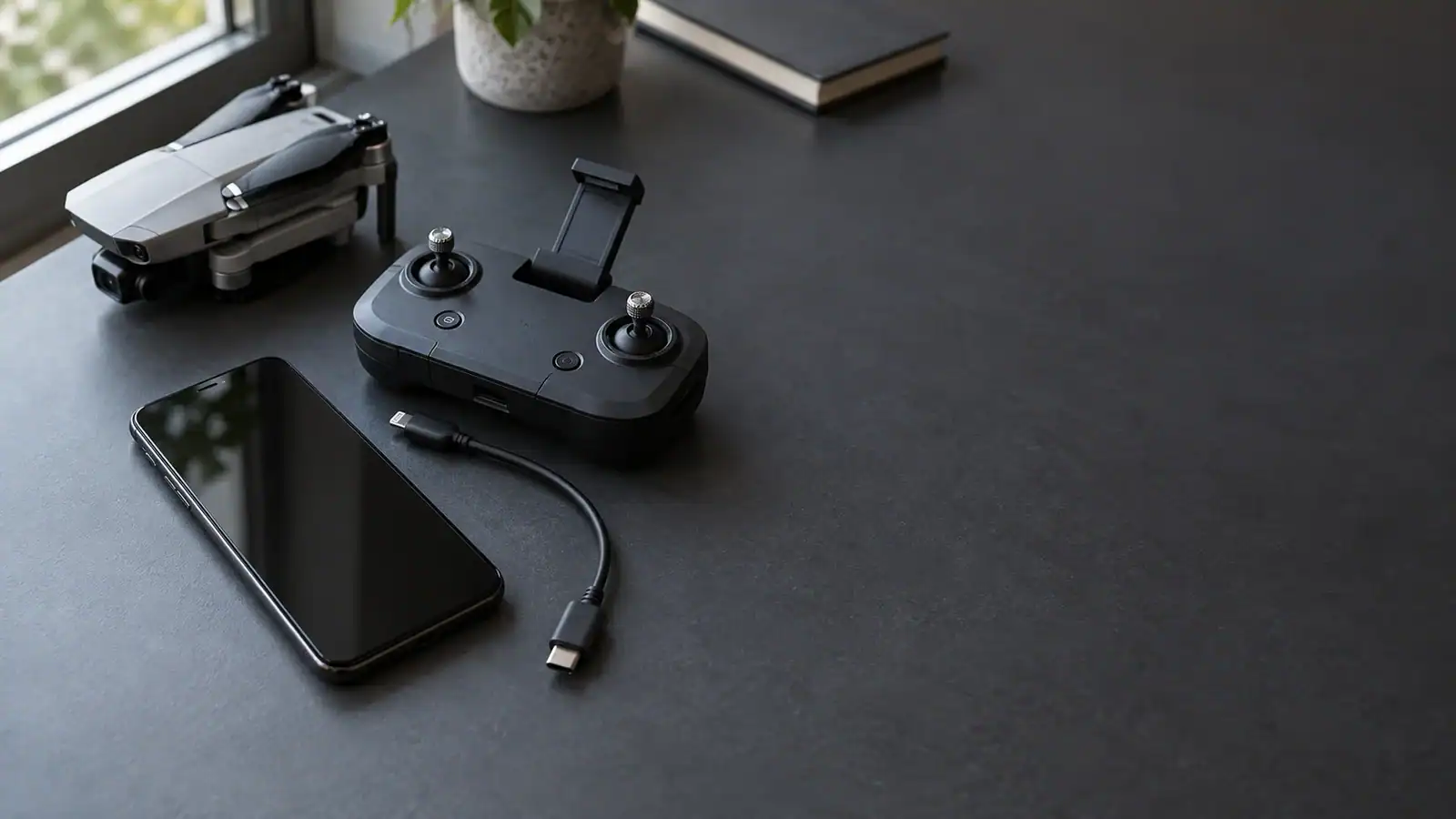
Use the supplied cable matching your phone's connector. The end marked with a transmitter icon goes to the transmitter; the other end goes to the phone. Open HS FLY's live-feed interface. On Android, select charge only if a connection-mode prompt appears, as specified on printed pages 19–20.
That Android menu label does not mean that a power-only replacement cable is suitable. Begin with the included cable, not an unverified lead that happens to fit. Make sure a phone case is not preventing full insertion. With power off, inspect the connectors for visible damage or contamination; do not force a plug, bend contacts or probe a port with metal.
Hold the phone securely without straining the lead. If normal handling repeatedly disconnects it, note whether the movement is at the phone or transmitter end and stop using that setup. This observation helps support narrow the problem; it does not establish which component needs replacing.
The HS FLY App Store description mentions Wi-Fi in general terms. Follow the exact HS360S model instructions for the physical connection. There is no reason to reset all saved Wi-Fi networks merely because live view is missing.
Use the phone-specific checks
iPhone: unlock, disconnect and reconnect
Apple says a locked iPhone may not communicate with a wired accessory. Disconnect the lead, unlock the phone, then reconnect it. Follow any relevant accessory approval prompt. Apple's wired-accessory guidance explains the security setting and differences between connector types. Start with an unlocked phone rather than allowing every accessory while locked.
The U.S. HS FLY listing currently specifies iOS 12.0 or later. Meeting that minimum establishes an installation requirement, not proof that every phone, cable and app-version combination will work. If the app installs but the cable is not recognized, record that distinction.
Android: separate USB recognition from app failure
Apply the model's connection-mode instruction above if your phone presents that choice. If no prompt appears, do not assume the phone is defective or enable developer options to force one. Record the phone model, Android version and whether anything changes when the included cable is connected.
For an app that freezes or will not open, Google recommends restarting and checking updates. Open Google Play, use the profile menu and Manage apps & devices, and update HS FLY if offered. You can also force-stop the app through its phone settings. Menu names vary by device. Test again after each step, with the aircraft grounded.
Both platforms: confirm the app, then update carefully
Use the downloads linked from the official HS360S beginner guide. The flight app is HS FLY, and its Google Play listing identifies Holy Stone Technology. A similarly named tutorial app is not a substitute. For more detail on holy stone drone app, see our Holy Stone Drone App Guide: Which App Does Your Model Use?.
If HS FLY crashes on iPhone, follow Apple's app troubleshooting order: close and reopen it, restart the phone, then check for app and operating-system updates. Perform downloads and installation before returning to the aircraft connection check.
Keep reinstalling as a later step. Apple and Google warn that removing an app can erase its stored data. Save recordings or settings you need first, and confirm that you can obtain the correct app again. Do not install an old APK from an unofficial mirror as a shortcut.
The HS360S V5.2 manual states that its firmware cannot be upgraded. An app update is not an aircraft firmware-flashing procedure. If you encounter a conflicting firmware prompt, capture it and ask Holy Stone to identify it for your exact model before proceeding.
Decide whether to resume preparation or stop
After a successful retry, check for a changing live camera view rather than a static picture. Confirm that the app remains responsive and that normal phone handling does not break the connection. If live view remains absent, close HS FLY, power down the aircraft and transmitter, and repeat the pairing and phone connection sequence once. If the same failure returns, keep that result for support. Connection recovery still leaves the normal aircraft preflight checks to complete.
Stop and postpone flying if pairing still fails, live view repeatedly drops, a port is loose, or equipment is damaged or unusually hot. A swollen or damaged battery is a reason to stop using it, not to keep power-cycling. Do not open the transmitter or aircraft to pursue a phone-connection fault.
Use Holy Stone's HS360S support page for an unresolved problem. Send the exact model, phone and operating system, HS FLY version, cable used, screenshot or error text, and the last step that worked. State whether the setup ever connected successfully and what changed before the fault. That gives support a useful starting point without guessing at a replacement part.
Sources
- Holy Stone HS360S User Manual V5.2: pairing, wired app connection and firmware limitation, printed pages 17–20, 53–54 and 60.
- Holy Stone HS360S beginner guide: official model-specific app and manual downloads.
- HS FLY on the U.S. App Store: app identity, description and iOS minimum.
- HS FLY on Google Play: official Android app identity.
- Apple wired-accessory support: unlocking and reconnecting accessories.
- Apple app troubleshooting: launch failures, updates and reinstall precautions.
- Google Android app troubleshooting: restart, updates, force stop and data-loss precautions.
- Holy Stone HS360S support: manufacturer assistance for unresolved model-specific faults.
Last checked: September 11, 2026.