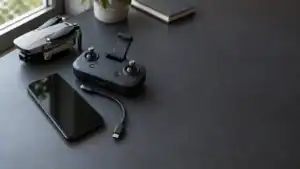
The correct Holy Stone drone app depends on the exact model. The HS360S and HS360E use HS FLY, the HS720E uses Ophelia GO, the HS720R and HS720G use Ophelia FLY, and the HS175D uses HS GPS V5. Do not download an app based only on the Holy Stone brand name. Match the complete model number, including its final letter.
This is a research-based compatibility and setup guide built from Holy Stone's current support pages, model manuals, and official app listings. App assignments can change with new hardware revisions, so the QR code and app name in the manual supplied with your exact drone remain the final authority.
Quick answer
Holy Stone HS360S
Use HS FLY. The phone connects to the transmitter with the supplied cable rather than joining a normal drone Wi-Fi network.
Holy Stone HS720E
Use Ophelia GO. Do not substitute Ophelia FLY just because the names are similar.
Holy Stone HS175D
Use HS GPS V5. HS GPS V1 and HS GPS V4 are separate apps for other models.
Featured model using HS FLY

Featured gear
Holy Stone HS360S GPS Camera Drone
The Holy Stone HS360S is a 249 g beginner GPS camera drone with brushless motors, Return to Home, HS FLY smart modes, a 3 km manufacturer-rated link, and 4K/20 fps recording to a compatible…
The Holy Stone HS360S is a 249 g beginner GPS camera drone with brushless motors, Return to Home, HS FLY smart modes, a 3 km manufacturer-rated link, and 4K/20 fps recording to a compatible microSD card.
- Best for
- Best for a beginner who wants a low-cost 249 g GPS camera drone with…
- Skill level
- Beginner
- Product type
- Beginner Drones, Camera Drones, Drones, Under 249g Drones
- Best for
- A beginner who wants a low-cost 249 g GPS camera drone with brushless motors,…
- Skill level
- Beginner
- Product type
- Foldable GPS Camera Drone
Holy Stone app compatibility table
Holy Stone has used several flight and camera apps across different product generations. The table below covers popular models that are listed in the manufacturer's current support directory or current manuals. It is not a promise that every regional bundle, retired drone, or future revision uses the same software.
| App | Confirmed models | Important distinction |
|---|---|---|
| HS Sirius | HS900, HS900 Pro | Used by the newer HS900 camera-drone family. It is not interchangeable with HS FLY. |
| HS FLY | HS175G, HS360S, HS360E, HS600, HS600D | Common on several newer GPS camera drones, but not on every new Holy Stone model. |
| HS GPS V5 | HS175D, HS460, HS790 | V5 is a separate app assignment. Do not treat it as an automatic replacement for V1 or V4. |
| Ophelia GO | HS700E, HS710, HS720, HS720E | Used by several established GPS models. The HS720E belongs here, not in Ophelia FLY. |
| Ophelia FLY | HS720G, HS720R | The similar name does not make it compatible with models assigned to Ophelia GO. |
| HS GPS V1 | HS110G | An older GPS app that still has a current official listing and a model-specific support link. |
| HS GPS V4 | HS440G | Use the V4 app named by the support page, not another HS GPS version. |
| HolyStone-FPV | HS420, HS430, HS440, HS440D | Primarily handles the live camera view and app functions on these Wi-Fi FPV models. |
| HS FPV V4 | HS280D | This is another distinct app. Its name is easy to confuse with HolyStone-FPV and HS GPS V4. |
The suffix matters. HS720, HS720E, HS720G, and HS720R are not one software platform. The table assigns HS720 and HS720E to Ophelia GO, while HS720G and HS720R use Ophelia FLY. A single letter can change the app you need.
Which app does the Holy Stone HS360S use?
The Holy Stone HS360S uses the HS FLY app. Holy Stone's current HS360S support page links to HS FLY for Android and iOS, and the current HS360S manual names the same app.
The less obvious detail is the phone connection. The HS360S manual instructs the pilot to place the phone in the controller holder and connect it to the transmitter with the supplied phone cable. A Type-C cable may already be installed, with other connector options supplied for compatible phones. That is different from many older Holy Stone drones that broadcast a Wi-Fi network for the phone to join.
For the HS360S, use this basic order:
- Install HS FLY using the QR code in the manual or the links on Holy Stone's HS360S support page.
- Charge the drone battery, transmitter, and phone.
- Fit the correct phone cable and connect the phone to the transmitter.
- Power on and pair the transmitter and aircraft as directed by the manual.
- Open HS FLY and confirm that the live view and aircraft information appear before proceeding with calibration or flight preparation.
The controller remains the primary physical flight interface. The phone and HS FLY provide the live camera view, status information, camera controls, and supported app-based flight functions. If the app does not display the aircraft correctly, solve that issue on the ground rather than launching with an incomplete setup.
For the drone's buying details, camera limitations, package contents, and internal product link, see the Holy Stone HS360S GPS camera drone page.
Considering the HS360S?
Check the current offer and bundle details through the verified FPV Drone product record. Confirm the included battery count and phone connector before ordering.
How to find the correct Holy Stone drone app
Searching an app store for “Holy Stone drone app” can return several genuine Holy Stone apps at once. The safest route is to start with the aircraft, not with the search results.
- Find the complete model number. Check the aircraft label, battery compartment, box, controller label, or cover of the supplied manual. Record the full suffix, such as HS720E rather than only HS720.
- Open the model's official support page. Use Holy Stone's Manual & App directory and choose the exact model.
- Follow the model-specific app link or QR code. This reduces the risk of installing a similarly named but incompatible app. If the QR code is only available as a saved image, you can scan a QR code from a screenshot on Android or iPhone.
- Verify the developer. The current official listings used for this guide identify Holy Stone or HOLY STONE TECHNOLOGY Co., Ltd. as the provider. Avoid unrelated apps that merely include the brand name in their description.
- Read the connection section before powering up. Determine whether your phone connects by cable, joins the drone's Wi-Fi network, or follows another model-specific route.
- Keep the manual available during first setup. App installation, controller pairing, compass calibration, and GPS acquisition are separate steps. Completing one does not automatically complete the others.
If your model is not in the table: do not choose the app that looks newest. Use the app name and QR code printed in the manual for that exact aircraft revision, then compare it with Holy Stone's current model support page.
How to connect a Holy Stone app to your phone
There is no universal Holy Stone connection sequence because the hardware path varies by model. Start by determining which of the following connection types your manual shows.
USB or controller-cable connection
The HS360S and HS900-series documentation use a wired phone-to-controller connection. Install the correct app, select the supplied connector that matches the phone, and make sure the cable is fully seated at both ends. If Android asks what to do with the USB device, allow the app to use the connection when prompted. A charge-only cable or a damaged connector can prevent the live view even when the phone appears physically connected.
Drone Wi-Fi connection
Many models that use Ophelia GO, HS GPS, HolyStone-FPV, or HS FPV V4 connect the phone to a Wi-Fi network generated by the drone. The network often has a Holy Stone name followed by characters that identify the aircraft. The network normally provides a local link to the camera and flight electronics, not internet access.
If the phone warns that the network has no internet, choose the option that keeps the phone connected. Some manuals also direct users to disable mobile data, VPN service, Bluetooth, or automatic network switching while establishing the drone link. Follow the instructions for your exact model because those requirements are not identical across every app.
Pairing is not the same as app connection
The transmitter can be paired with the aircraft while the phone is still disconnected from the camera feed, or the phone can be connected to the aircraft network before the controller pairing sequence is complete. Treat these as separate checks:
- The transmitter recognizes and controls the aircraft.
- The phone is connected through the correct cable or Wi-Fi route.
- The correct app shows live video or aircraft status.
- The app has the required phone permissions.
- Compass, gyro, and GPS indications meet the manual's requirements before takeoff.
A visible camera feed is a useful connection check, but it does not by itself confirm that calibration, GPS lock, Return to Home settings, or flight-area safety checks are complete.
Holy Stone app troubleshooting: fix the most common problems
Work through the checks in order. Changing several settings at once makes it harder to identify whether the problem is the app, the cable, the phone network, the controller pairing sequence, or a permission.
| What you see | Most useful first check | What to do next |
|---|---|---|
| The app opens but shows the wrong interface | Recheck the exact model suffix and app name. | Delete the mismatched app and install the one linked from the model's official support page. |
| Black screen or no live video | Confirm the required cable or drone Wi-Fi connection. | Reconnect first, then fully close and reopen the correct app. Check camera, local-network, photo, or media permissions if requested by the phone. |
| Phone says the drone Wi-Fi has no internet | Stay connected to the drone network. | Disable automatic switching, VPN, or mobile data if the model manual directs it. The local drone network is not expected to provide web access. |
| HS360S phone is connected but the app sees no aircraft | Check that the phone-to-controller cable carries data. | Reseat both ends, try the supplied connector, approve any USB prompt, and verify that the transmitter and aircraft are paired. |
| Map will not load | Check whether the phone currently has internet access. | For models whose manual requires cached map data, disconnect from the aircraft network, load the map while online, then reconnect as instructed. |
| Photos or videos do not appear on the phone | Check the app's photo, media, and storage permissions. | Also verify the memory card, recording location, format requirements, and download procedure in the exact model manual. |
| App works on one phone but not another | Compare operating-system compatibility and permissions. | Update the official app, restart the phone, remove battery-saving restrictions, and test with a supported device before assuming the aircraft is defective. |
Before reinstalling everything
Confirm the model, app, and connection route first. Reinstalling the correct app will not fix a charge-only USB cable, and changing phone network settings will not fix an HS360S that expects a cable connection. Likewise, a perfect live view does not fix an unpaired controller.
Before assuming the drone is defective
Try a fully charged battery, restart the aircraft and controller, reboot the phone, and repeat the manual's setup order from the beginning. If the same failure remains on a second supported phone or with another known-good supplied cable, record the app version, phone model, operating-system version, aircraft model, and the exact step that fails before contacting Holy Stone support.
Commonly confused Holy Stone apps
Ophelia GO and Ophelia FLY are not the same app
Their names sound like two editions of one program, but Holy Stone assigns them to different models. The HS720E uses Ophelia GO, while the HS720G and HS720R use Ophelia FLY. Installing both does not improve compatibility. Only the model-assigned app is expected to communicate correctly.
HS GPS V1, V4, and V5 are separate model assignments
The version number in the app name is part of the compatibility requirement. A newer number does not mean it replaces every earlier HS GPS app. For example, Holy Stone's current support links assign HS GPS V1 to the HS110G, V4 to the HS440G, and V5 to the HS175D, HS460, and HS790.
HolyStone-FPV and HS FPV V4 are different listings
HolyStone-FPV is used by models including the HS420, HS430, HS440, and HS440D. The HS280D manual instead names HS FPV V4. Similar words and icon styles are not enough to establish compatibility.
Drone Go2 is not the general Holy Stone flight app
The current official Drone Go2 listing describes an app for reading and writing data on Holy Stone Remote ID equipment. It is not presented as the universal camera or flight-control app for the models in the compatibility table.
The practical rule is simple: app-store search order, update date, star rating, and the word “GPS” do not determine compatibility. The exact model support page does.
Final takeaway
There is no single Holy Stone drone app for every model. Match the full aircraft model to the manufacturer's app assignment, then follow that model's connection method. For the Holy Stone HS360S, install HS FLY and connect the phone to the transmitter with the supplied data cable. For another model, do not assume HS FLY is correct just because it is newer or has a familiar name.
Before the first flight, confirm five separate items on the ground: the correct app, a working phone connection, controller-to-aircraft pairing, required permissions, and successful calibration or GPS checks. That sequence solves more setup confusion than repeatedly trying different Holy Stone apps.
Frequently asked questions
What app do I need for the Holy Stone HS360S?
Use HS FLY. Holy Stone's support page and current HS360S manual both identify HS FLY, and the manual shows the phone connecting to the transmitter with a supplied cable.
Can I use Ophelia GO instead of HS FLY?
Not unless the manual for your exact model assigns Ophelia GO. These apps support different Holy Stone hardware families. Ophelia GO is used by models including the HS720E, while the HS360S uses HS FLY.
Why does my phone say the Holy Stone Wi-Fi has no internet?
On Wi-Fi-connected models, the aircraft creates a local network for video and control data. That network normally does not provide internet access. Choose the option that keeps the phone connected, and follow the manual if it directs you to disable mobile data, VPN, or automatic network switching.
Can a Holy Stone drone fly without the phone app?
It depends on the model and the function. Many models use the physical controller for basic flight, while the phone app supplies live video, camera settings, status data, maps, or smart-flight functions. Check the model manual before flying without a working app connection because required setup information and available features differ.
Should I install the newest HS GPS app?
No. Install the exact HS GPS version named for the aircraft. HS GPS V1, V4, and V5 are separate compatibility assignments, not a simple upgrade path for every older drone.
Sources
- Holy Stone Manual & App directory: official model index used to identify current support pages, app links, and manuals.
- Holy Stone HS360S user manual: official manual used to verify the HS FLY assignment and wired phone-to-transmitter connection.
- Holy Stone HS175D beginner guide: official support page used to verify the HS GPS V5 assignment.
- Holy Stone HS720E beginner guide: official support page used to verify the Ophelia GO assignment.
- Holy Stone HS720R support page: official app links and documentation used to verify the Ophelia FLY assignment.
- Holy Stone HS900 Pro product and download page: official documentation used to verify HS Sirius and its controller-to-phone connection.
- Holy Stone HS440D beginner guide: official support page used to verify the HolyStone-FPV assignment.
- Holy Stone HS280D user manual: official manual used to verify the HS FPV V4 assignment.
Last checked: July 24, 2026