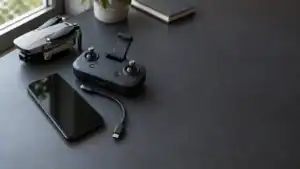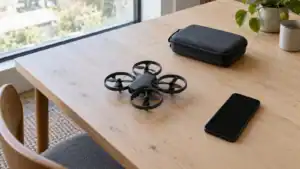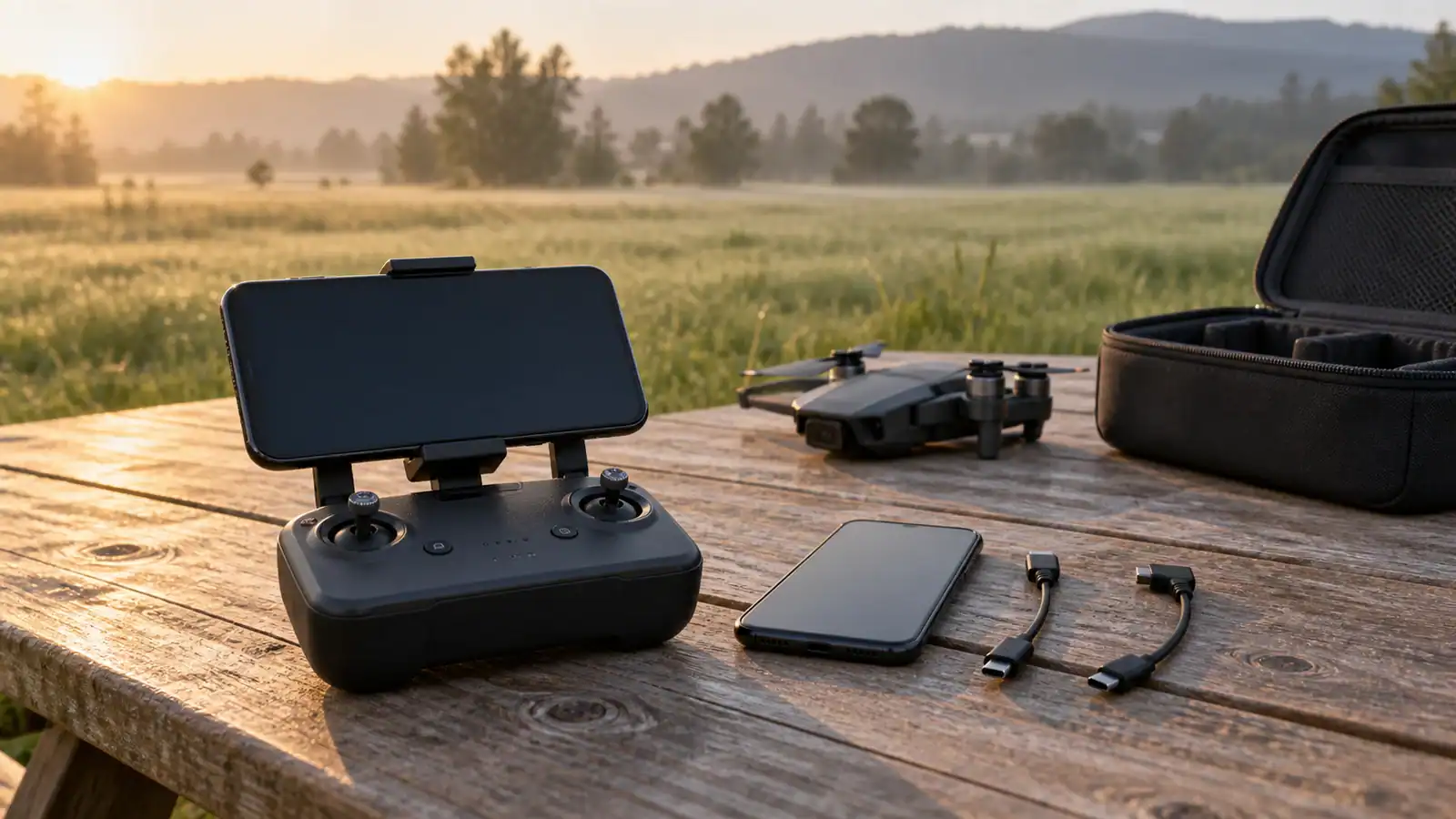
The Holy Stone HS360S uses the HS FLY app and a cable between your phone and controller. For iPhone, the current App Store listing requires iOS 12.0 or later. For Android, the 2023 manual lists Android 5.1 or later, but that is not a promise that today's app will install or work on every such phone. Check the current store listing on your handset, the cable and the live feed before flying.

Featured gear
Holy Stone HS360S GPS Camera Drone
The Holy Stone HS360S is a 249 g beginner GPS camera drone with brushless motors, Return to Home, HS FLY smart modes, a 3 km manufacturer-rated link, and 4K/20 fps recording to a compatible…
The Holy Stone HS360S is a 249 g beginner GPS camera drone with brushless motors, Return to Home, HS FLY smart modes, a 3 km manufacturer-rated link, and 4K/20 fps recording to a compatible microSD card.
- Best for
- Best for a beginner who wants a low-cost 249 g GPS camera drone with…
- Skill level
- Beginner
- Product type
- Beginner Drones, Camera Drones, Drones, Under 249g Drones
- Best for
- A beginner who wants a low-cost 249 g GPS camera drone with brushless motors,…
- Skill level
- Beginner
- Product type
- Foldable GPS Camera Drone
iPhone and Android requirements at a glance
There are four separate checks: app eligibility, the correct connector, secure physical fit and a functioning connection. Passing one does not establish the others. The table distinguishes published requirements from checks you still need to make.
| Check | iPhone | Android phone |
|---|---|---|
| App | HS FLY from Holy Stone in the App Store. | HS FLY from Holy Stone in Google Play. |
| Operating system | The current US listing requires iOS 12.0 or later. | The 2023 manual specifies Android 5.1 or later. Confirm current installation eligibility on your actual phone. |
| Phone connector | Match the handset's actual Lightning or USB-C port; do not assume all iPhones use the same lead. | Match the handset's USB-C or Micro-USB port using the appropriate HS360S connection lead. |
| Connection mode | Verify that HS FLY opens a working live view. | If asked for a USB connection mode, the manual says to choose “charge only.” |
| Holder and case | Holder advertised up to 10 cm wide. Check phone, case and cable fit. | Same holder limit. Confirm the mounted phone leaves the controls accessible. |
The 2023 manual lists iOS 11, while the current App Store requires iOS 12. The newer V5.1 manual directs users to the app stores without repeating those old OS minimums. Use the current store requirement when deciding whether you can install the app. For Android, the public Google Play page does not give an equally clear current OS minimum, so do not treat the older Android 5.1 figure as a current compatibility guarantee.
The iPhone listing is not a tablet compatibility guarantee either. Check separately before substituting an iPad or Android tablet; this guide does not establish tablet mounting or operation. A recent phone is not automatically a verified phone. If your exact model is essential to a purchase decision, ask Holy Stone to confirm that model, OS version and controller cable combination. An app-store download alone does not confirm video stability or every flight feature.
How the wired connection works
The phone connects to the transmitter; it does not replace it. Holy Stone's HS360S product page explicitly says that the smartphone uses a data cable and does not need to join the drone's Wi-Fi network. The generic Wi-Fi wording in the app-store description covers the app, not the HS360S-specific connection procedure.
V5.1 identifies Type-C, Micro-USB and Lightning connection leads and marks which end belongs in the transmitter. Follow that orientation. A plug fitting into a socket is not, by itself, proof that a replacement lead is suitable. Likewise, the Android menu label “charge only” does not mean you should substitute a power-only charging cable for the specified connection lead.
Check the accessories in your actual package before ordering anything. Holy Stone warns that package contents can vary by purchase channel. For a USB-C iPhone, have Holy Stone confirm the correct lead for your handset and verify live view before relying on that combination. The published connector options do not constitute a tested list of USB-C iPhones.
Check the phone connection before takeoff
Use this as a phone check alongside the model's full preflight procedure. Keep the motors stopped throughout the connection check.
- Install the correct app. Follow the app links from the HS360S support page. Check that the developer is Holy Stone and that installation is permitted on this phone.
- Prepare the aircraft and controller. Follow your manual's battery, camera-cover, unfolding and pairing instructions. Place the drone safely so a connection check cannot become an accidental takeoff.
- Fit the phone and lead. Seat the phone securely, connect the transmitter-marked end correctly and make sure the case does not prevent the phone plug from seating.
- Open HS FLY's live-view controls. On Android, choose “charge only” if the connection-mode prompt appears. Phone menus vary; do not assume a missing prompt means the connection has failed.
- Confirm a changing image. With the aircraft stationary, move an object within the camera's view from a safe position. Check that the image updates and the relevant status display remains readable. A frozen last frame is not a working feed.
This grounded check is an editorial way to separate installation, mounting and connection problems before flight. It does not test airborne range, tracking reliability or failsafe behavior. Complete the remaining preflight steps before takeoff.
When the app installs but the camera view fails
Work through one change at a time while the aircraft is grounded. If the app will not install, resolve store eligibility first. If it opens but cannot show live video, recheck the exact app, the specified cable, its orientation and both seated plugs. On Android, revisit the connection-mode choice if the phone offers one.
If the connection works only without the case, solve that fit problem before flight. If another phone is available, checking it with the same aircraft and appropriate original lead can help isolate the problem, but a result on that second phone does not certify your first one. Record what changes and what stays the same.
For recurring freezes, unreadable controls or unexplained disconnections, stop and contact Holy Stone with the exact phone model, OS version, HS FLY version, cable type and the stage that fails. A short description such as “app opens, but no moving camera image” is more useful than “phone incompatible.” Do not try to diagnose the cable while flying.
Keep app updates separate from aircraft firmware. The V5.1 manual, printed page 60, says the product firmware cannot be upgraded and directs users to app-store updates for HS FLY. Google Play currently displays an August 31, 2026 app update. That is not an aircraft firmware release or a promise to fix a particular phone. Follow the official model support guidance rather than attempting a firmware flash.
Choose by a working connection, not the OS number alone
Keep your current phone if it can install HS FLY, fit securely with the correct lead and maintain a usable grounded live view. If any of those checks fails, resolve that specific problem before buying a replacement phone or flying. The useful dividing line is a verified phone-and-controller setup, not simply “iPhone” versus “Android.”
Sources
- Holy Stone HS360S product page: manufacturer description of the wired connection, holder width and package variation.
- HS360S manual, 2023 edition: historical iOS and Android minimums.
- HS360S Instructions for Use V5.1: manufacturer connection procedure, safety instructions and firmware statement.
- HS FLY, US App Store: current iPhone app identity and installation requirement.
- HS FLY, Google Play: official Android app identity and displayed update date.
- Holy Stone HS360S support: official model-specific app and documentation links.
Last checked: September 10, 2026.