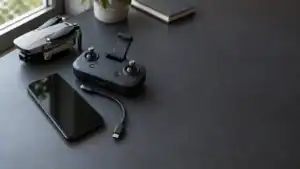
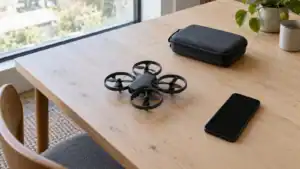
You can fly the DJI Neo 2 with only a compatible phone by connecting it to DJI Fly over Wi-Fi and choosing Manual Control. The app provides virtual sticks and a camera view. Start with a short, close flight in an open area, and confirm the landing controls before taking off. DJI documents this under Neo 2 Mobile App Control.
1. Prepare the phone and aircraft
Install DJI Fly through DJI's Neo 2 download page. At the September 6, 2026 check, that page lists DJI Fly 1.21.10, iOS 13.0 or later, and Android 9.0 or later. DJI recommends an iPhone 11 or newer, or a mainstream Android flagship released after 2019. Check its device list for your phone; meeting the operating-system minimum alone does not establish that DJI has tested your model.
Charge the phone and aircraft, remove the gimbal cover, and inspect the battery attachment, propellers, guards and sensors. Choose a clear outdoor space in daylight with a level landing area. Avoid crowds, water and strong wind for this first exercise. These preparations follow DJI's Neo 2 beginner guidance.
Phone control uses the aircraft's Wi-Fi connection. It does not require a handheld controller. Leave previously paired controllers off, and disable Wi-Fi and Bluetooth on another phone that has connected to this aircraft. Otherwise, a competing connection can prevent the intended phone from taking control.
2. Connect in DJI Fly and finish updates
- Power on Neo 2 and let its self-check finish. Enable Wi-Fi, Bluetooth and location services on the phone.
- Open DJI Fly. Choose Connection Guide, select DJI Neo 2, then Connect via Mobile Device.
- Select your aircraft. For the first connection, confirm by holding its power button when prompted. The successful connection opens the Controls view.
- Complete activation if the aircraft is new. While internet access is available, follow DJI Fly's firmware-update prompt. Wait for completion before attempting a flight.
The connection sequence is in User Manual v1.2, pages 36–37. A connection that only lets you browse footage is not your final check: confirm that you can enter the aircraft controls and see its live camera view.
DJI's current download index lists a June 23, 2026 release-note update and the December 2025 v1.2 manual. Use the update offered for your aircraft in DJI Fly instead of treating an older version number in a tutorial as the target. DJI's April 2026 release notes also warn that updates can reset return altitude and maximum distance. Restart after updating and inspect those settings again.
3. Set up a small practice area
Open the app's Safety settings. DJI's beginner guide identifies Brake and Bypass as obstacle-avoidance choices. For a first manual-control exercise, choose Brake: stopping at a detected obstacle is easier to anticipate than a detour. That is a practice recommendation, not a promise that the aircraft can detect every obstacle.
Set the flight limits for the clear space in front of you and inspect the return altitude against surrounding obstacles. Wait for a strong satellite-positioning indication and the Home Point confirmation before relying on Return to Home. If the available return path and permitted height do not allow safe clearance, choose another location.
The Neo 2 manual specifies a 60 m maximum altitude in Mobile App Control. This is a mode limit, not a suggested practice height or permission to fly that high. Keep this first flight low and close enough to judge the aircraft's direction directly. For the broader differences among control arrangements, see what each Neo 2 control setup unlocks.
4. Take off, check the sticks and land
In the Controls view, open the mode selection and choose Manual Control. Review the on-screen takeoff and landing prompts before starting. Use the takeoff control and complete its confirmation only when the launch area is clear. Let the aircraft settle before making a directional input.
Read the virtual-stick labels and the in-app control tutorial. In the conventional Mode 2 arrangement, the left stick changes height and turns the nose; the right stick moves forward, backward or sideways. Confirm the displayed layout before using that mapping. The app's Manual Control means steering through its virtual sticks; it should not be confused with the separate FPV Manual flight mode introduced in DJI's November 2025 firmware notes.
Use this short practice sequence to find a setup problem while there is still ample space to stop:
- Check the hover. Observe the aircraft directly and check for app warnings. If its movement or status is unexpected, end the exercise.
- Try one input at a time. Make a small climb, turn or sideways movement, then return the control to center before trying another. Match each input to the visible movement.
- Keep the return area clear. Come back close to the starting position before experimenting with camera framing. A first flight should establish control, not test range.
- Finish with a deliberate landing. Over the clear landing area, use the app's landing control and its confirmation. Wait until the aircraft is down and the propellers stop before approaching it.
Treat a stable connection, understandable stick response and a completed landing as the checks to pass before adding a filming task. If an automated shooting task is already running, stop that task before switching to Manual Control.
Know where Return to Home will go
Neo 2 supports Return to Home while using the phone. Tap the RTH icon on the left of the camera view, then hold the confirmation icon. In manual flight without a tracked subject, it returns to the recorded Home Point. Subject tracking changes that behavior: the return destination follows the tracked subject, or its last tracked location if lost. Simply walking away with the phone does not make manual-flight RTH follow you.
DJI's Neo 2 RTH guidance says that manual Home Point updates are unavailable in Wi-Fi mode and that its signal-loss action defaults to RTH. Return depends on a recorded Home Point and suitable positioning. The manual adds that, without satellite positioning, phone control provides landing rather than RTH. Do not deliberately break the connection to test recovery.
Common mistakes to catch before another flight
The phone sees the aircraft but never reaches Controls
Return to the connection sequence and check the selected model, phone permissions and first-pairing confirmation. Check for another previously connected phone or powered controller. Change one thing at a time while the aircraft is on the ground; repeated takeoffs will not diagnose a pairing problem.
A familiar safety setting is different after updating
Recheck the saved flight limits and return altitude. DJI explicitly warns about firmware resetting these parameters. If an update fails, its release notes instruct you to restart the aircraft and DJI Fly and try again. Resolve the update on the ground before using a missing feature as part of your flight plan.
The camera view works, so you assume the flight is ready
Video reception answers only one question. It does not tell you whether the landing area is clear, the Home Point is correct or your thumbs are operating the intended controls. Use the preparation and short practice flight together. Stop when a warning or unexpected response makes the next action uncertain.
You switch straight into tracking
Learn manual control and landing first. Then choose a separate clear route for tracking, where the moving subject and the aircraft both have room. Our Neo 2 tracking and gesture guide covers that next task in more detail.
Make the first flight a control check
A useful first session ends with three things you can repeat: connecting the intended phone, moving the aircraft deliberately and landing where you planned. Establish those before extending the route or adding automated shots. If one is unreliable, return to that step on the ground.
Sources
- DJI Neo 2 downloads: current app requirements and dated manual and release-note listings.
- DJI's beginner guide to Neo 2: preparation, activation, Safety settings and flight features.
- DJI Neo 2 User Manual v1.2: phone connection, altitude limit and positioning-dependent return behavior.
- DJI Mobile App Control guide: the Neo 2 section establishes virtual-stick control.
- DJI Drone RTH Logic: the Neo 2 section explains phone-mode return destinations and signal loss.
- DJI Neo 2 release notes through April 23, 2026: update precautions and earlier feature introductions.
Last checked: September 6, 2026.